Telecom Customer Churn Prediction using Decision Tree & Random Forest
Follow these steps to complete the Customer Churn Prediction simulation using Decision Tree and Random Forest:
Step 1: Dataset Exploration
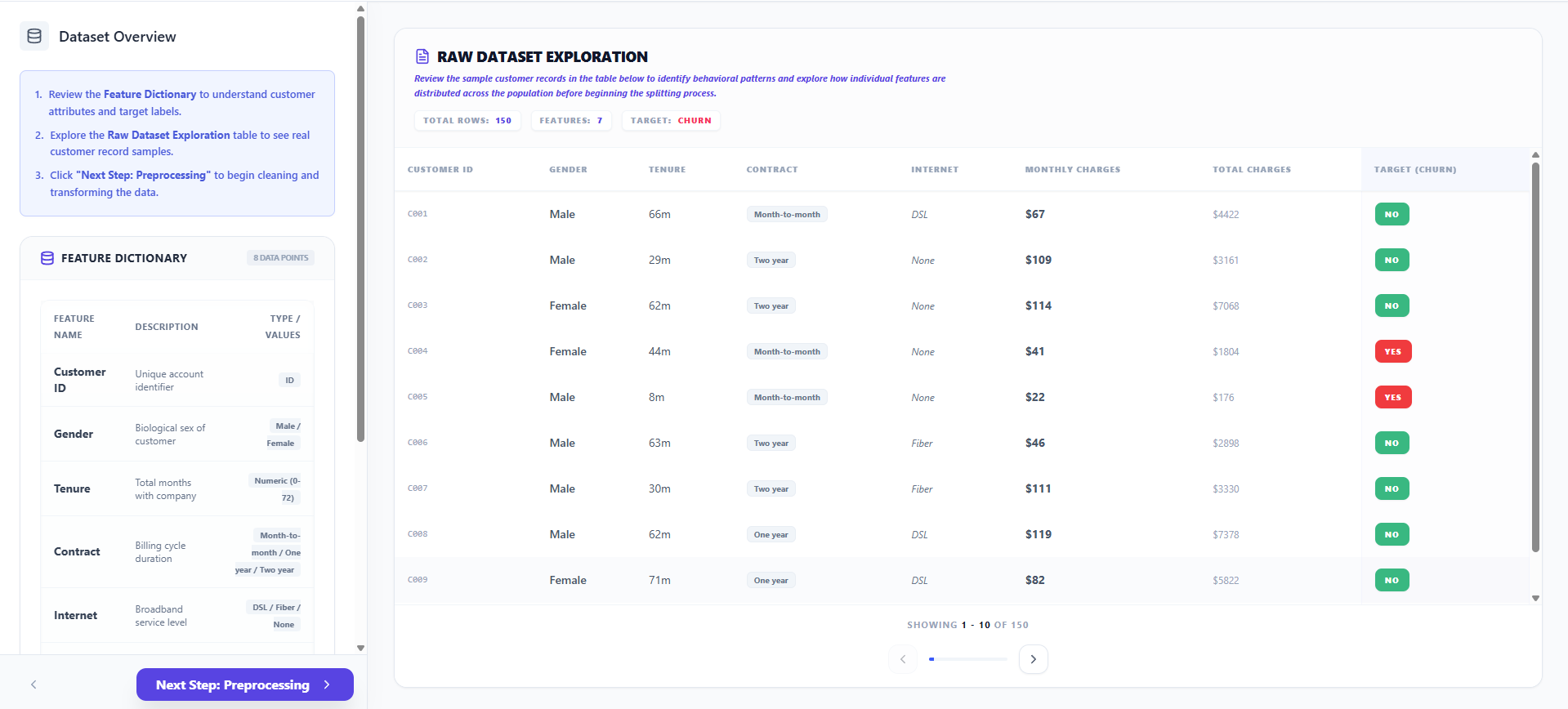
- Review the Feature Dictionary to understand the attributes (Tenure, Contract, Monthly Charges) used to predict customer behavior.
- Explore the Raw Dataset table to identify patterns in the target variable (Churn).
- Click "Next Step: Preprocessing" at the bottom of the navigation panel to continue.
Step 2: Data Preprocessing
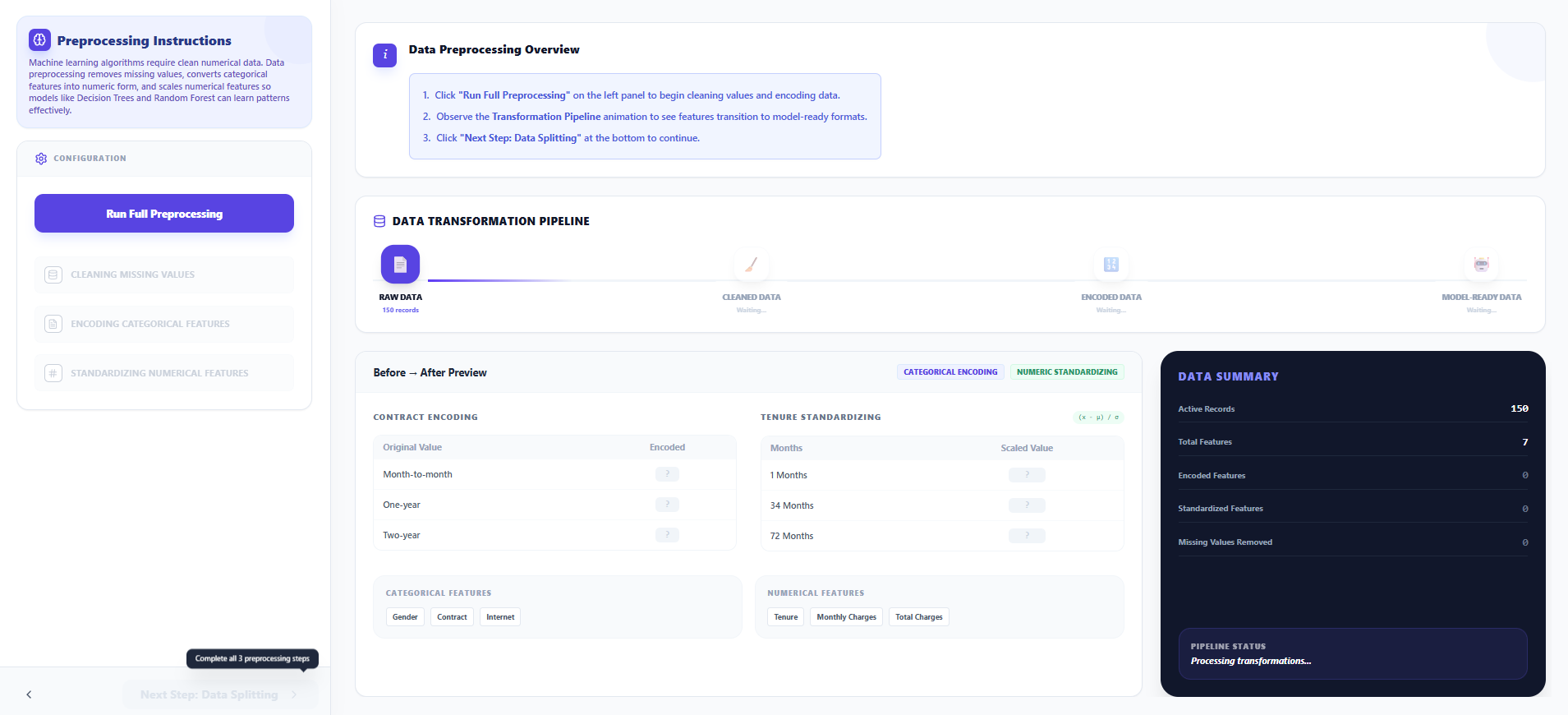
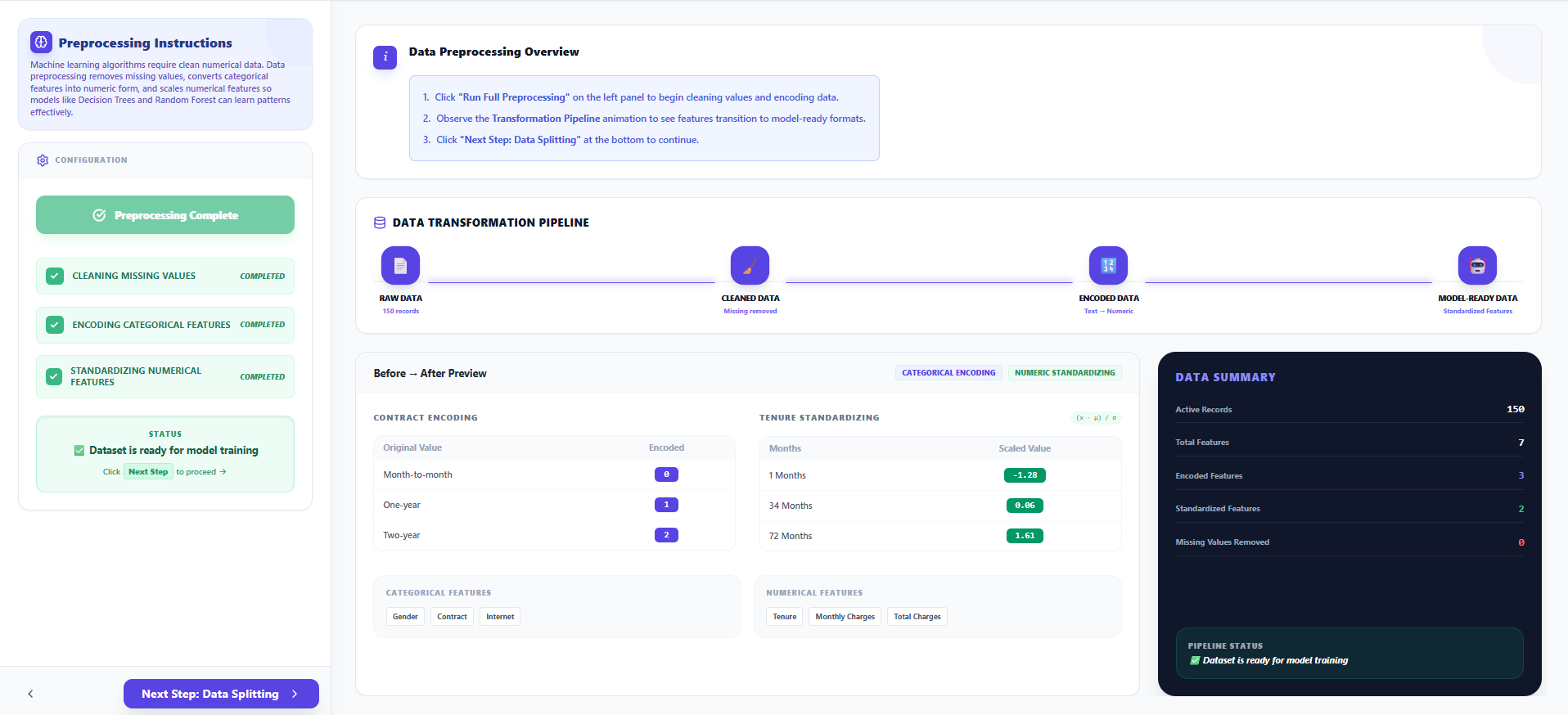
- Click "Run Full Preprocessing" on the left panel to begin the automated data transformation pipeline.
- The simulation will sequentially execute the following steps:
- Handle Missing Values: Removes or imputes missing data points to ensure dataset integrity.
- Label Encoding: Converts categorical variables (like "Contract") into numerical representations.
- Feature Standardization: Scales numerical features to a uniform range for optimal model performance.
- Observe the Data Transformation Pipeline animation to visualize these changes in real-time.
- Click "Next Step: Data Splitting" once the process is 100% complete.
Step 3: Dataset Splitting
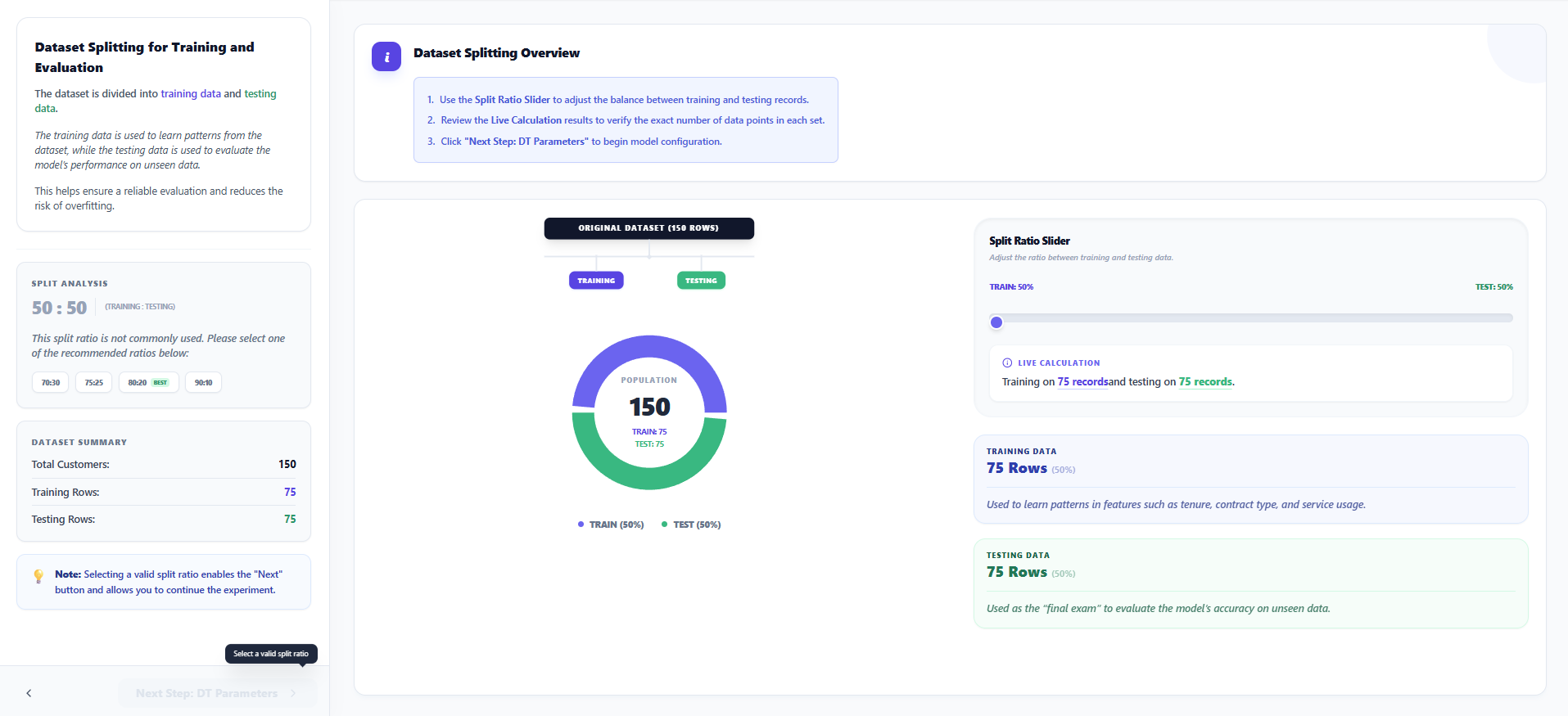
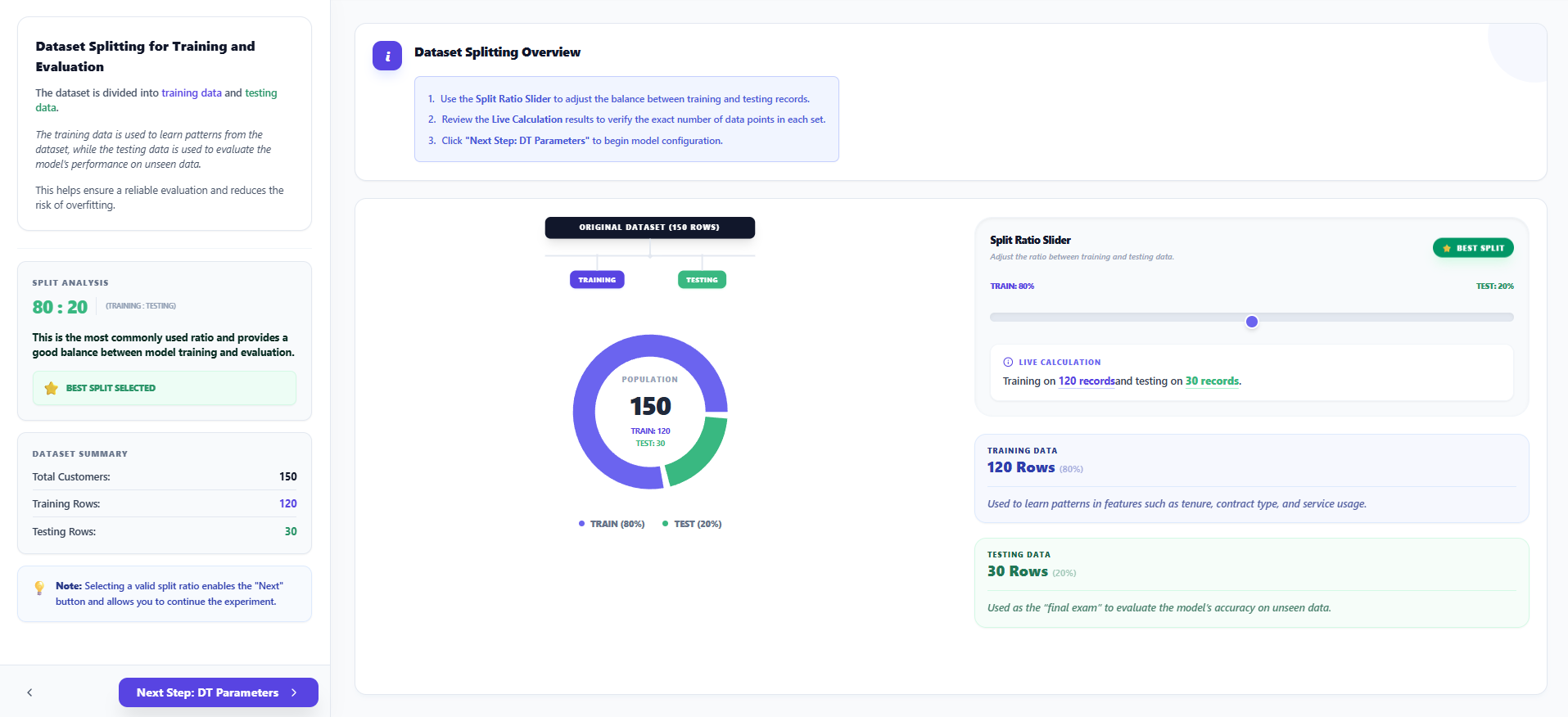
- Use the Split Ratio Slider to divide your data into Training and Testing sets.
- A common ratio is 80:20 (80% for training the model and 20% for evaluating it).
- Observe the Live Calculation results to see how the records are distributed between the two sets.
- Click "Next Step: DT Parameters" to begin model configuration.
Step 4: Decision Tree Configuration
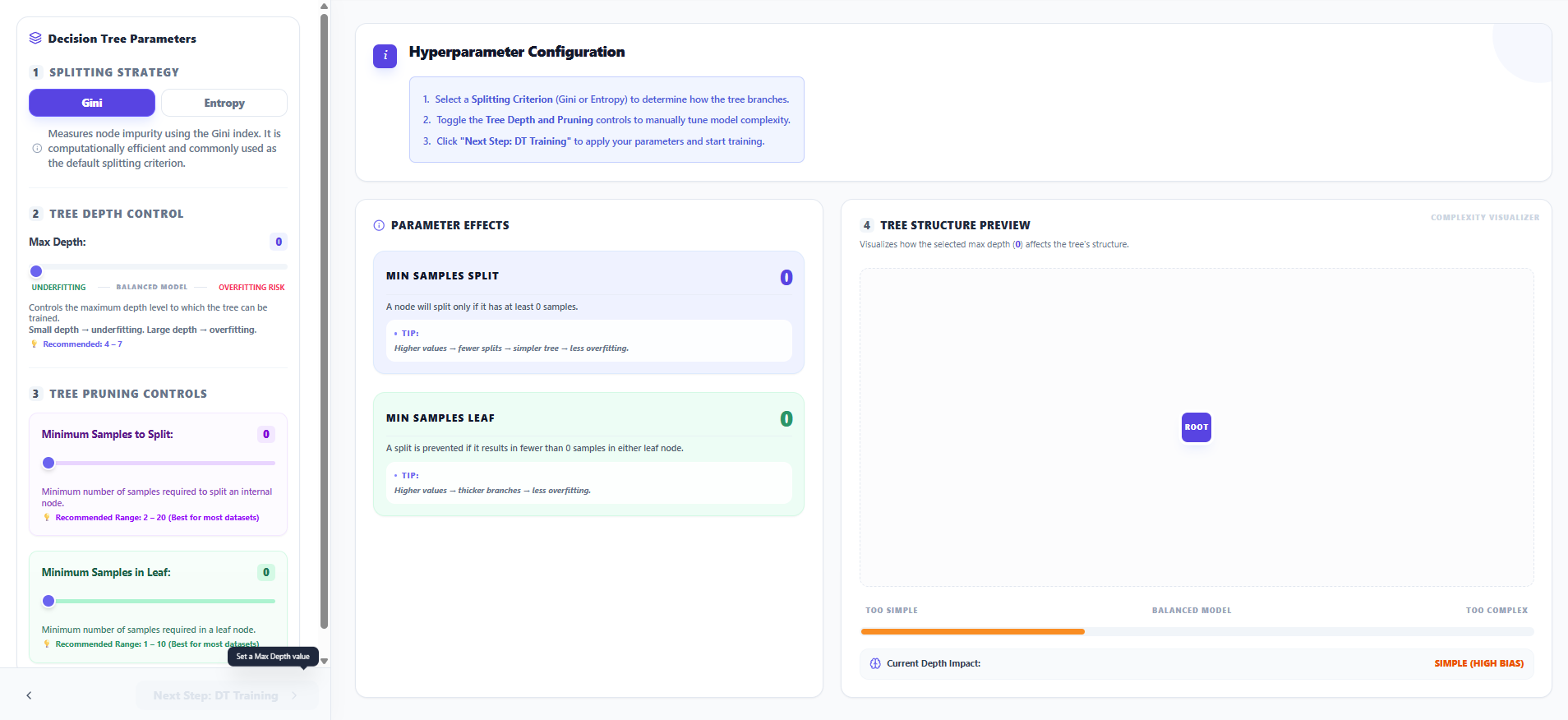
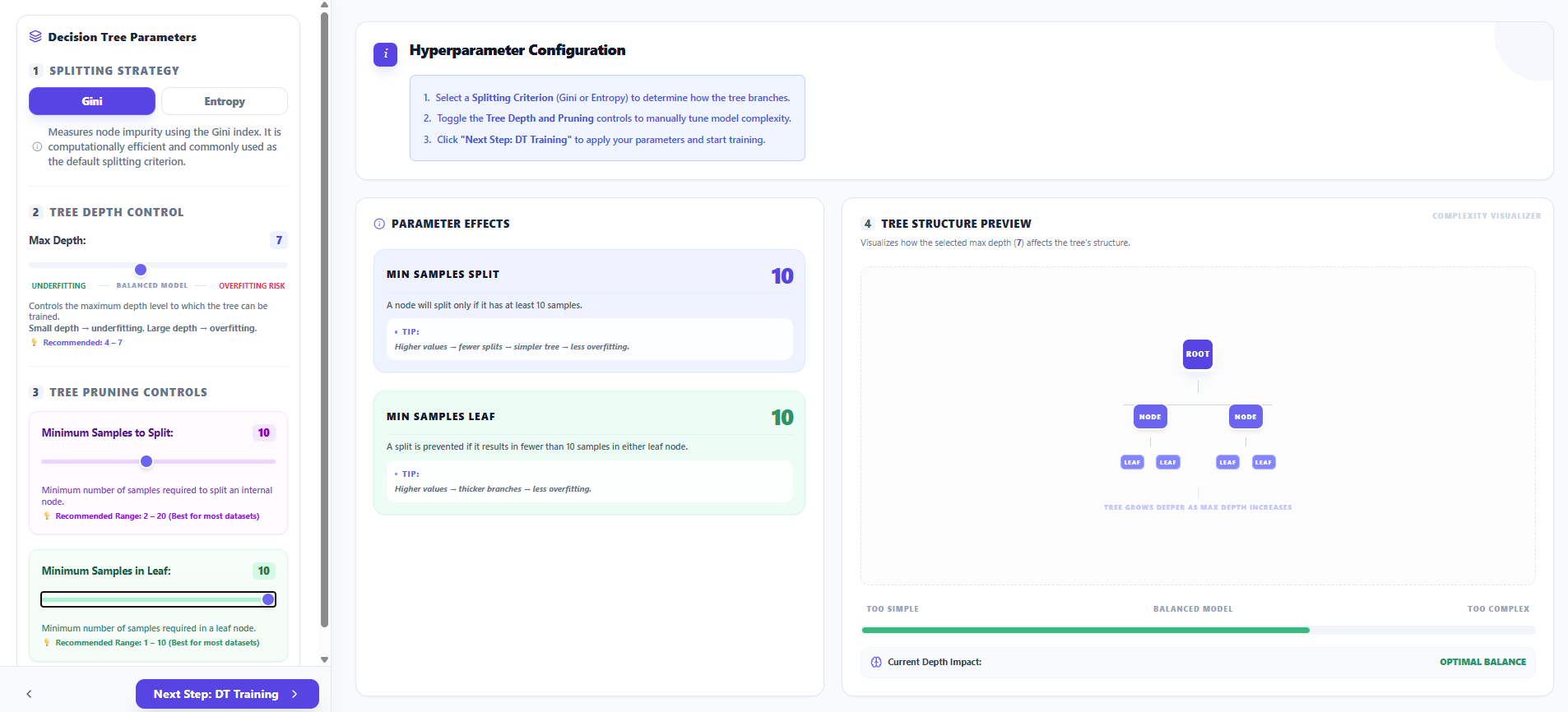
- Configure the Maximum Depth and other Splitting Criteria like Gini or Entropy.
- Adjust the Tree Depth and Pruning controls to manually tune model complexity and reduce overfitting risks.
- Observe the Tree Structure Preview to see how your depth selection affects the potential branching of the tree.
- Click "Next Step: DT Training" to proceed to the training phase.
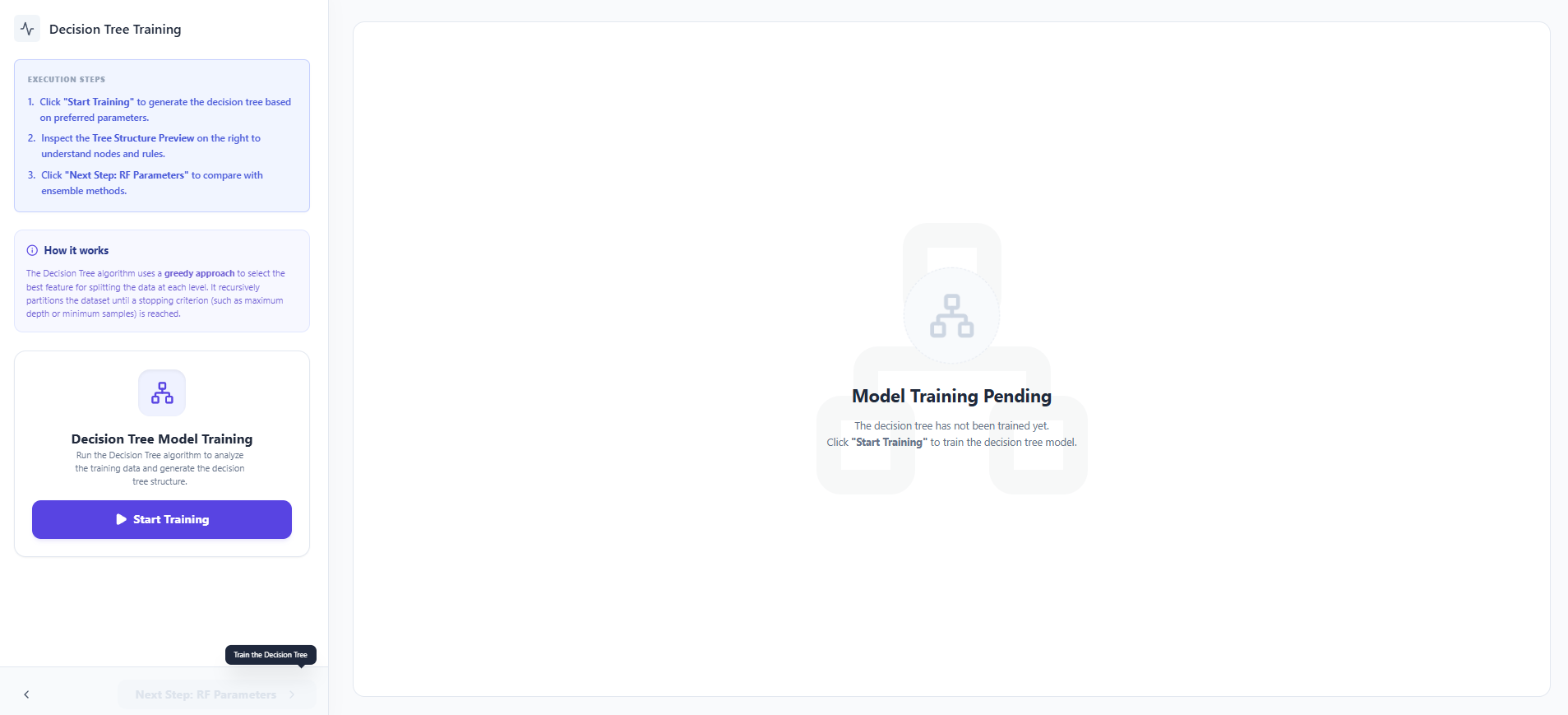
Step 5: Decision Tree Training
- Click "Start Training" to execute the recursive partitioning algorithm on your training data.
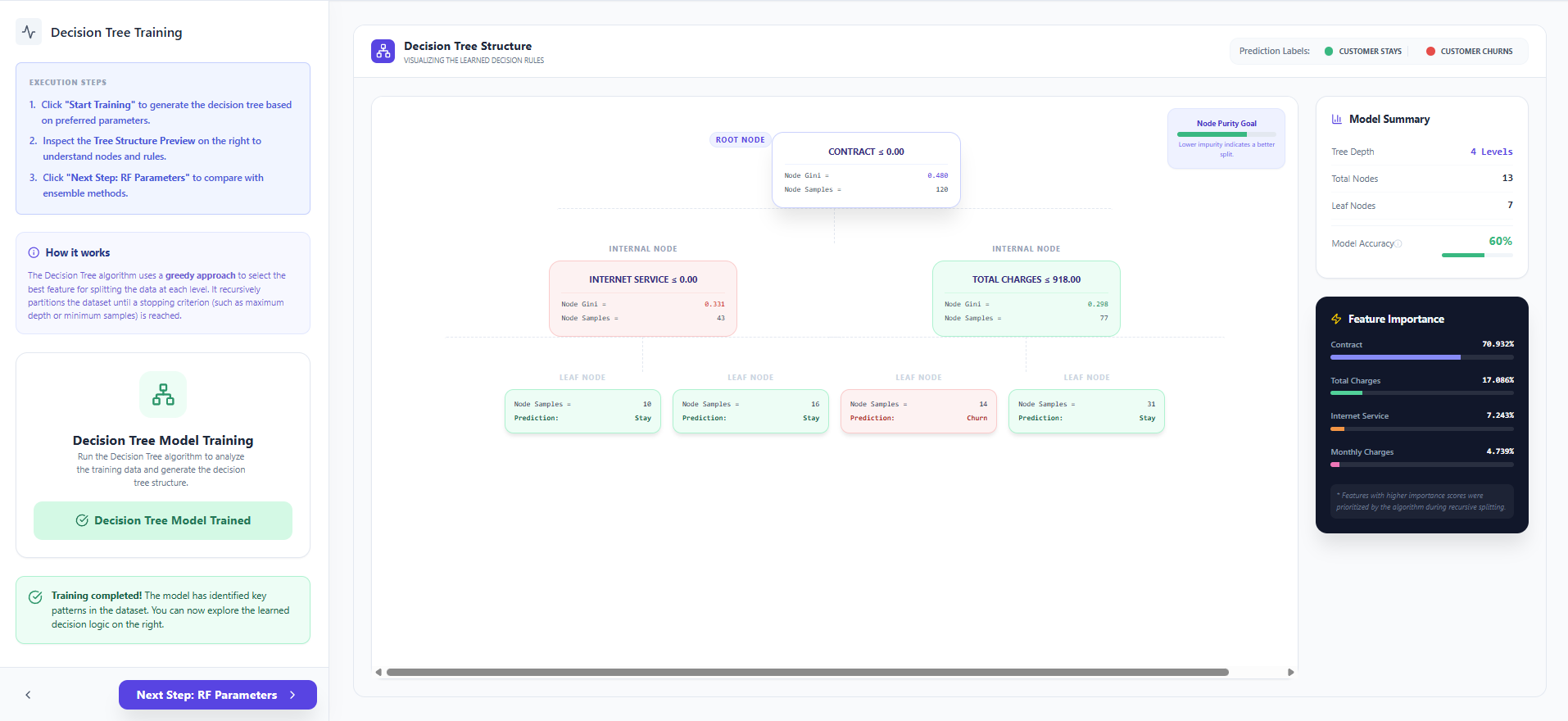
- Visualize the resulting Decision Tree Structure and see how the model makes specific decisions at each node.
- Review the Feature Importance scores to identify which factors (like "Contract" or "Tenure") impact churn the most.
- Click "Next Step: RF Parameters" to compare this with ensemble methods.
Step 6: Random Forest Configuration
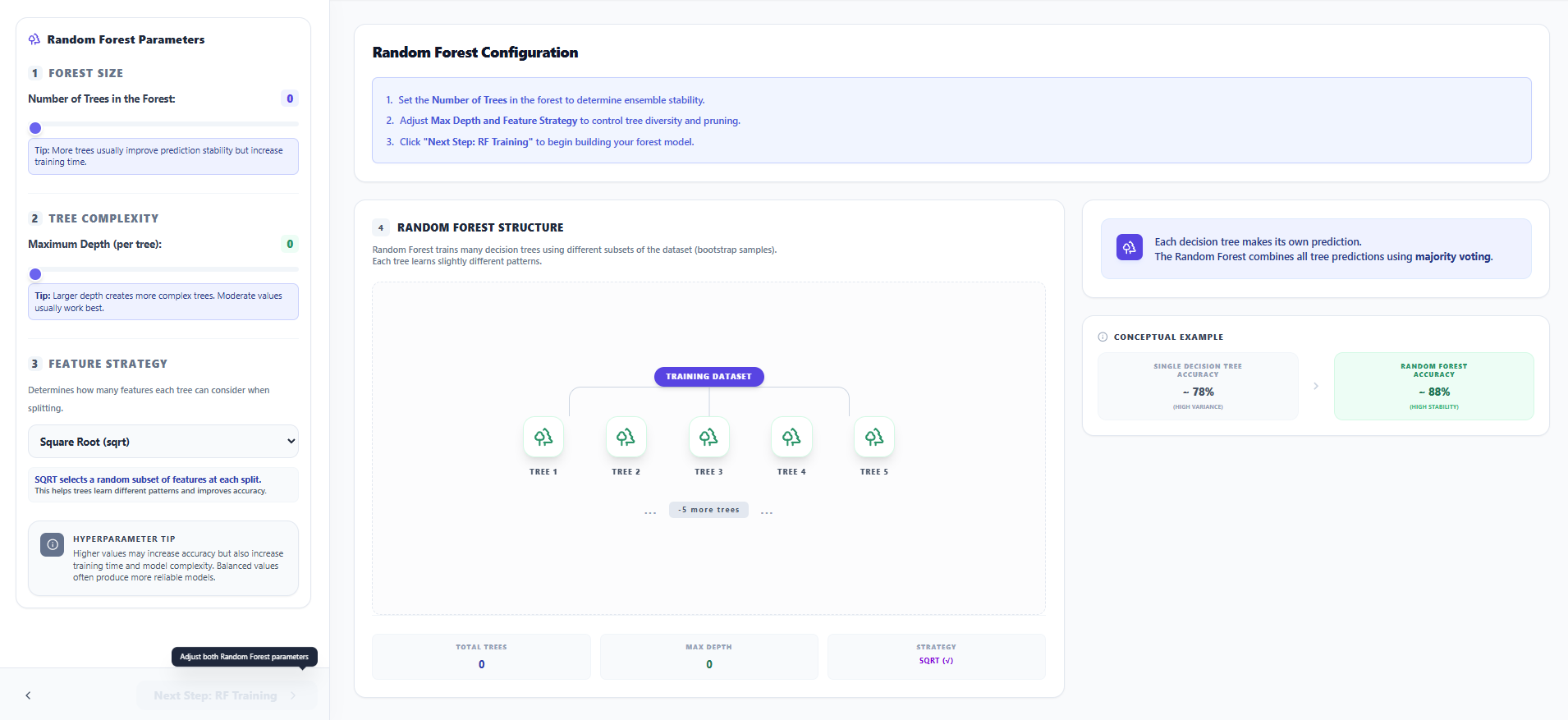
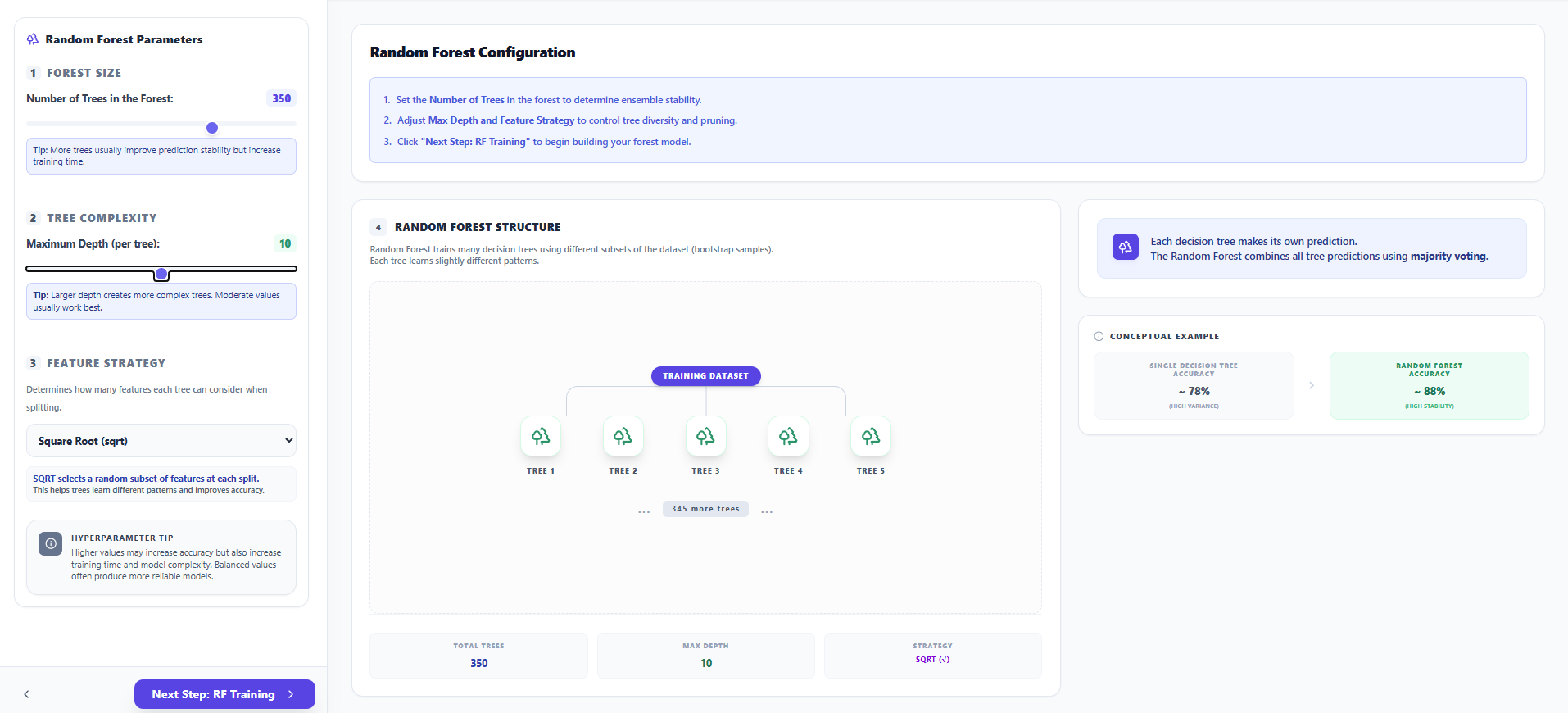
- Set the Number of Trees (n_estimators) and the Maximum Depth per individual tree.
- Select a Feature Strategy (like SQRT) to ensure feature diversity and improve the stability of the ensemble.
- Observe the Random Forest Structure diagram to understand how bootstrap samples are assigned to different trees.
- Click "Next Step: RF Training" to begin the training process.
Step 7: Random Forest Training
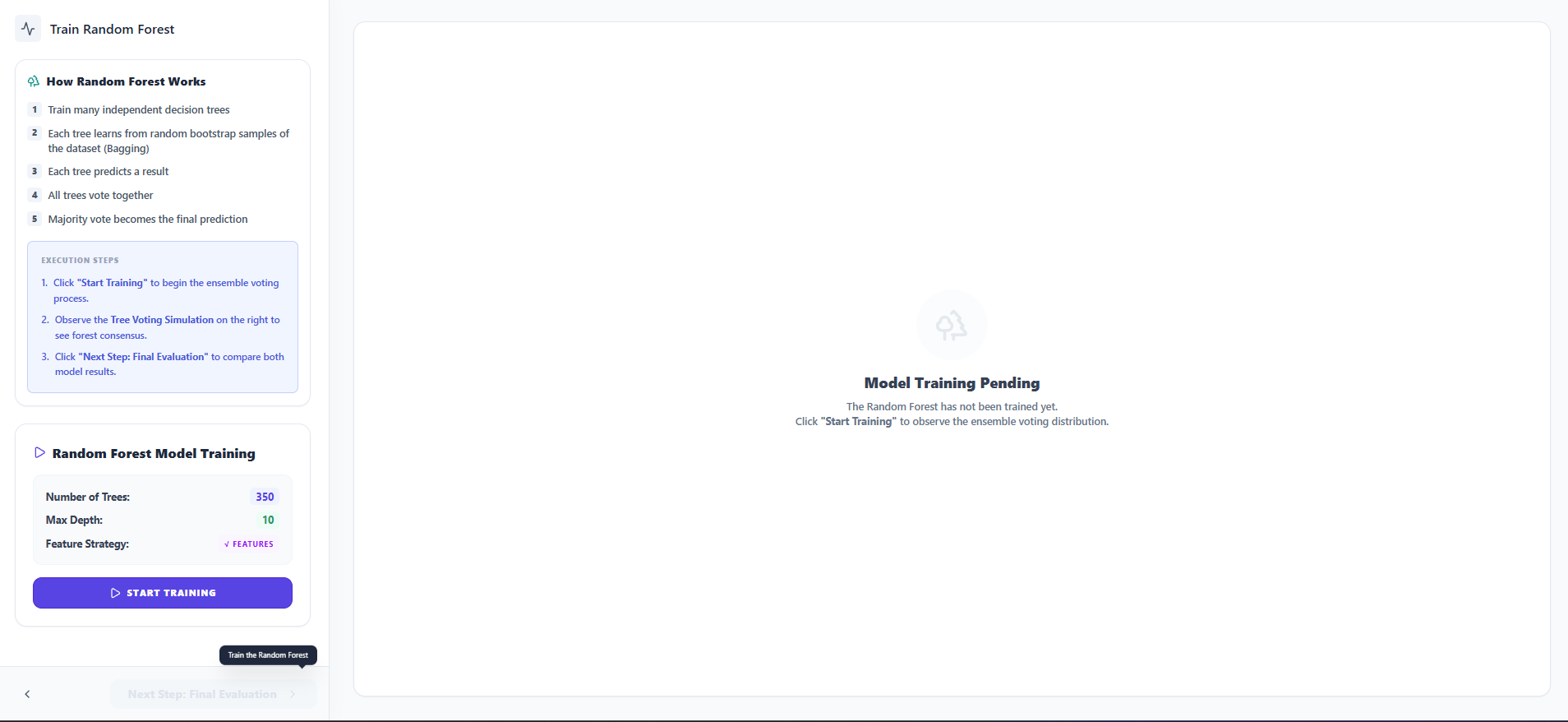
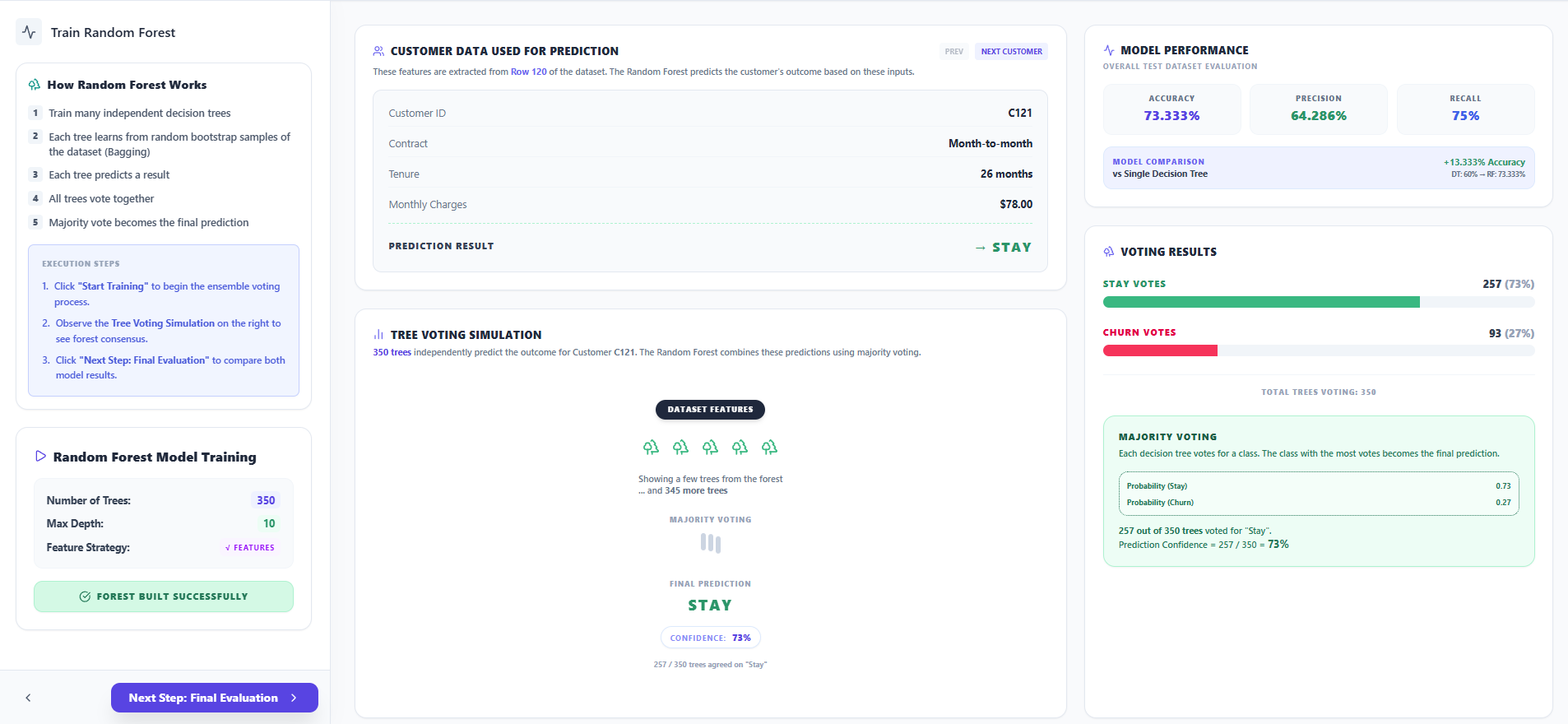
- Click "Start Training" to begin the ensemble voting process for the forest.
- Observe the Tree Voting Simulation as multiple trees independently predict outcomes for a specific test customer.
- Check the Prediction Confidence and the probability breakdown between "Stay" and "Churn" classes.
- Click "Next Step: Final Evaluation" to view the summary results.
Step 8: Model Comparison & Evaluation
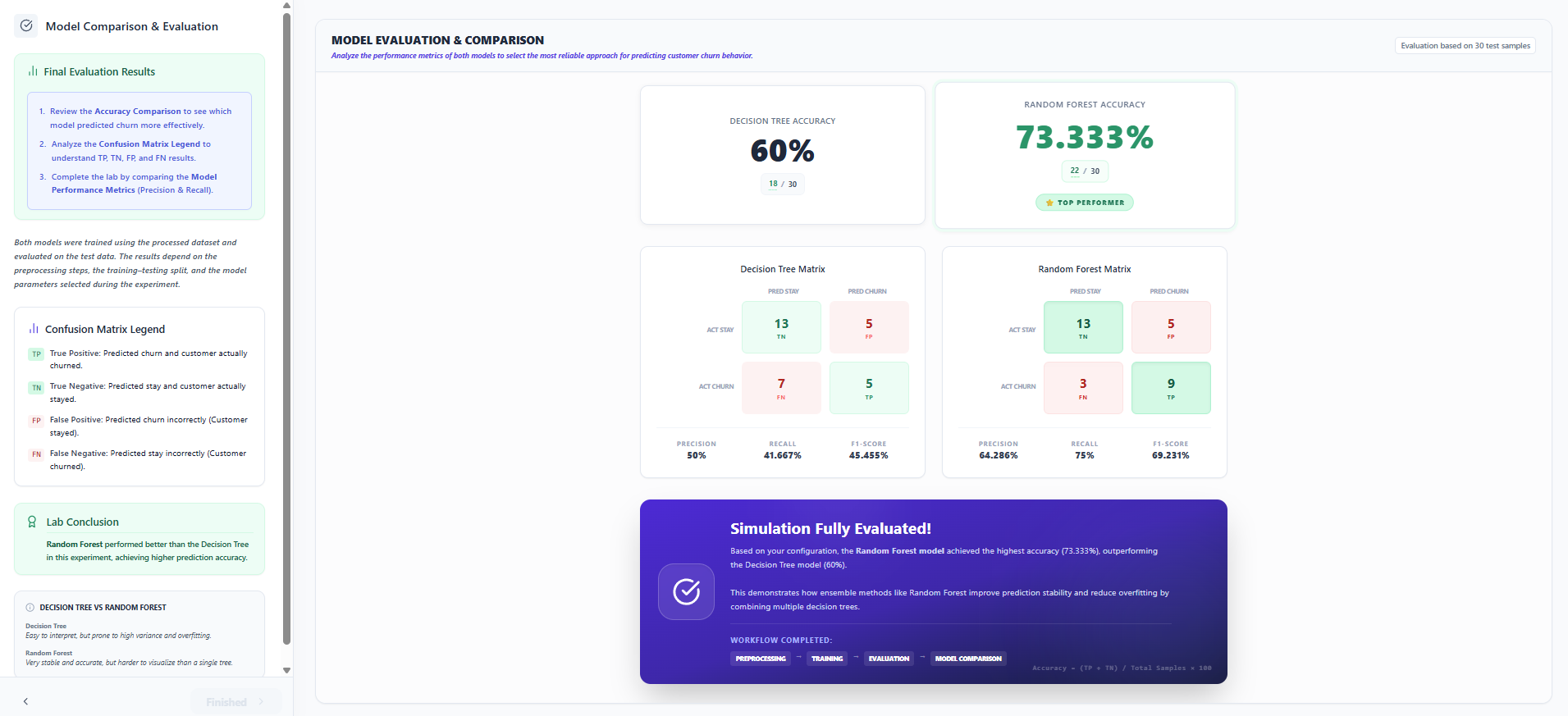
- Review the Accuracy Comparison and analyze the Confusion Matrix Legend (TP, TN, FP, FN) to identify the top performer.
- Compare the Performance Metrics (Precision and Recall) to evaluate the prediction quality of both models.
- Click "Finished" to complete the laboratory session and review the final conclusion.